 Knowledge Base
Pricing
Define time-based, seasonal, and membership-gated pricing rules for your venue's resources.
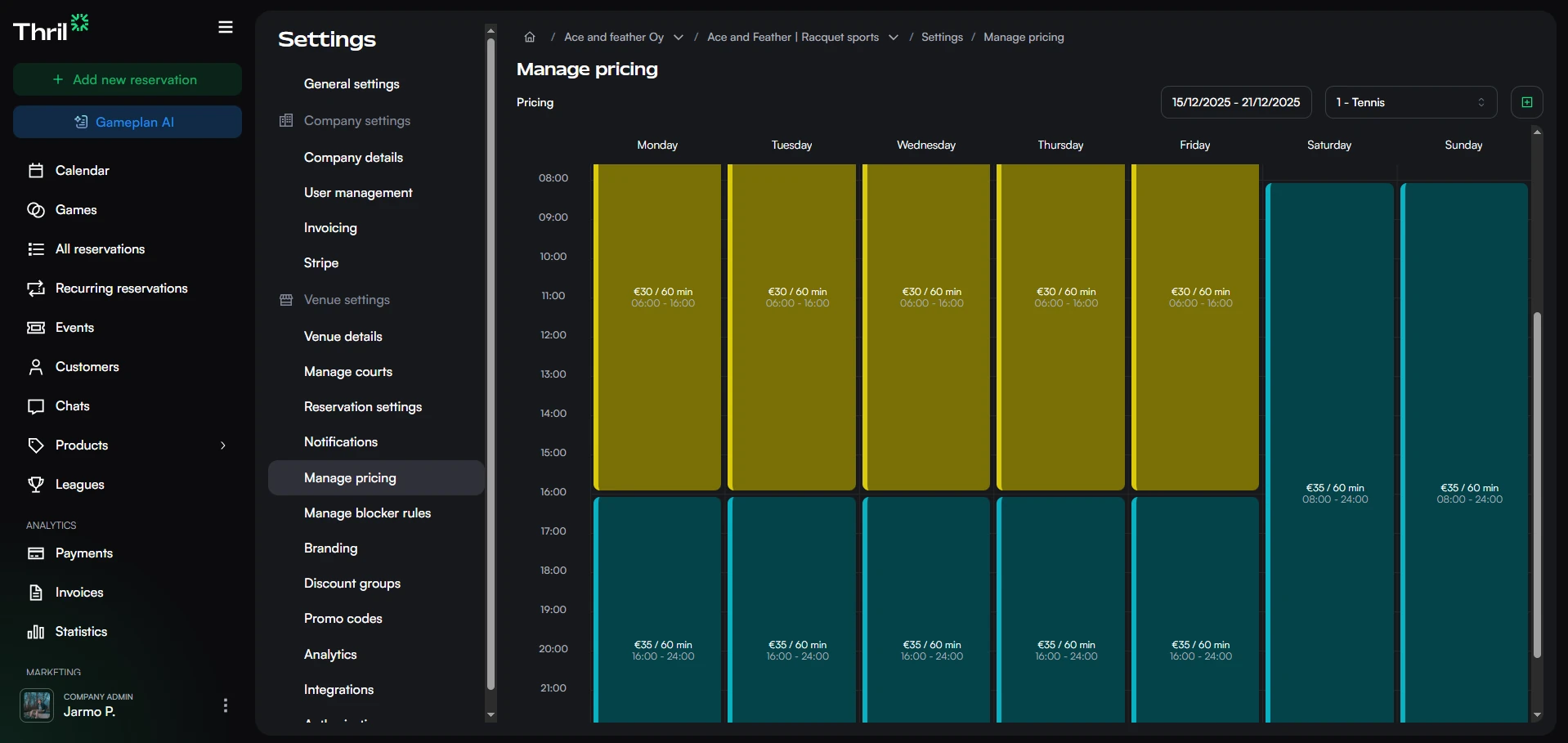
Pricing rules are managed under Settings → Manage pricing. The page shows a week-by-week timeline of all active rules, one resource at a time. Use the resource selector and week picker in the top right to browse.
A pricing rule belongs to your company, not to a single venue. One rule can price resources in several venues at once, so the same winter pricing covers every venue that needs it. The resource selector groups resources by venue, and picking the resources is the whole scope of the rule: there is no separate venue setting.
Creating a pricing rule
Click Add new pricing rule (top right) to open the create drawer. The drawer walks through three parts, and keeps two more sections collapsed at the bottom.
1. What the rule prices
- Resources. One or more resources this rule applies to, grouped by venue. Pick resources from as many venues as the rule should cover. Only venues where you hold an admin or staff role are listed.
- Pricing rule name (optional). An internal label, not visible to customers.
2. When the rule applies
- Days of week. Which days the rule is active.
- Time ranges. One or more time ranges during which the rule applies.
- Validity. Always keeps the rule running with no expiry. Between dates adds a Start date and an End date.
3. Prices
- Prices. One or more duration and price pairs, for example 60 min for €10. Add a row for each bookable duration. If no prices are defined, the time period will not be bookable.
- Longer durations. Only the durations listed above offers exactly the rows you entered. Scale from the shortest duration lets Thril fill in the rest, and adds Step (30, 60, 90 or 120 minutes) and Up to, the maximum duration in minutes. See Scaled pricing below.
Booking restrictions
- Blocked start times. One or more clock times at which no slot may start. A longer slot that runs across a blocked time is still offered. See Blocked start times below.
- Require membership to book. When enabled, only customers with an active membership can book from this rule. Non-members are prompted to purchase a membership to unlock access.
Advanced
- Exclude unwanted time slot gaps. Hides time slots that would leave an unobtainable gap in the resource's schedule. Enabled by default.
Click Create pricing rule to save.
Per-resource tax and benefit settings: Reservation tax percentage and employee benefit eligibility are configured on individual resources, not on pricing rules. Open Settings → Manage resources, select a resource, and adjust those fields. See Resources.
Editing a pricing rule
Click any rule block in the timeline to open the edit drawer. All fields from creation are editable. Click Save changes to apply, or Delete to remove the rule permanently.
How rules work together
A resource can have multiple rules covering different time windows, days, or date ranges. Each defines its own set of bookable durations and prices. When rules overlap, more specific rules take precedence: date-bounded rules override open-ended ones, and member-only rules override public ones. This means you can set a base price rule with no expiry and override specific periods with a seasonal rule without removing the base.
Only a membership or promo code that is available in every venue lets one rule cover several venues. When it is limited to a single venue, the rule stays in the venue you are working in, and the resource selector shows that venue's resources only. Pricing agreed with an authorized venue always stays with the venue that granted the authorization.
To offer member-only rates, combine a pricing rule with Memberships (using "Require membership to book"). For discounted rates, memberships are the recommended approach; Discount groups remain supported for existing configurations but are no longer recommended.
Memberships can also have dedicated reservation custom pricing, which acts as an overriding reservation-pricing rule. When custom pricing is set for a membership, it takes precedence over the normal reservation rule for that customer regardless of any other rules.
This reservation price is separate from the price charged for the membership itself. For free trials, introductory renewal prices, and member-specific discounted billing periods, see Membership pricing and trials.
A venue you have authorized to create reservations has its own set of pricing rules, which override your rules for that venue's bookings only. Set them on the venue's Pricing tab under Settings → Authorizations. See Authorizations in Thril.
Blocked start times
A blocked start time stops Thril from offering a slot that begins at that clock time. It does not close the time itself: a longer booking that runs across a blocked time is still offered.
Pick the times under Booking restrictions in the pricing rule drawer. Each time you pick must fall inside one of the rule's time ranges. The times are the venue's local clock times, so a rule that covers resources in several venues applies them in each venue's own time zone.
Example
A rule runs 16:00 to 22:00, has prices for 60 and 90 minutes, and blocks 18:30.
- Nothing starts at 18:30. A customer cannot book 18:30 to 19:30, or 18:30 to 20:00.
- The 18:00 to 19:30 slot is still offered. It starts at 18:00 and only runs across 18:30.
Scaled pricing
Scaled pricing means you set a price for the shortest duration only, and Thril automatically calculates prices for longer durations proportionally. This saves time when a resource is bookable in multiple durations.
How to enable it
When creating or editing a pricing rule, choose Scale from the shortest duration under Longer durations. Then:
- Set the price for the shortest duration. This acts as the base from which all other prices are calculated.
- Choose the Step: 30, 60, 90 or 120 minutes.
- Set Up to, the maximum duration in minutes. Thril generates a price for every step between the shortest and the maximum duration.
Overriding a price
The automatically calculated price may not always be right for every duration. You can override any individual duration by adding an explicit row for it under Prices. A manually set price replaces the automatic one for that duration only.
Example
Shortest duration is 60 min at €20, Step 30 min, Up to 120 min. Thril generates:
- 60 min: €20
- 90 min: €30
- 120 min: €40
If you want to set 90 minutes at €25 for commercial reasons, add an explicit row for it. The other durations continue to scale normally.
Scaled pricing is especially useful for venues where the same resource is bookable in many different durations. It reduces manual work and keeps pricing consistent.