 Knowledge Base
Recurring Reservations
Recurring reservations enable the sale of weekly time reservations as packages, with flexible payment and discount options.
Recurring reservations allow a sports venue to sell recurring weekly time reservations as packages. This is ideal for clubs, groups, or individuals who want to purchase regular playtime over a longer period (e.g., every Monday from 17:00–18:00). The reservations are sold as a package and can be paid either per session or upfront with discounts.
With Thril, this is easy: you define the reservations, and customers take care of the rest. Convenient and clear!
🔧 Creating a New Recurring Reservation
Create a new recurring reservation product as follows:
- Go to Products → Recurring Reservations
- Click Create recurring reservation

Step 1: Date & duration
- Booking window: Define the period during which reservations can be purchased (start and end date).
- Advance purchase delay: Decide how many days must pass between purchase and the first reservation. If you want to leave last-minute times for normal bookings, select at least 7 days.
- Minimum quantity: Set the minimum number of purchases allowed (e.g., 3 times = 3 weeks).
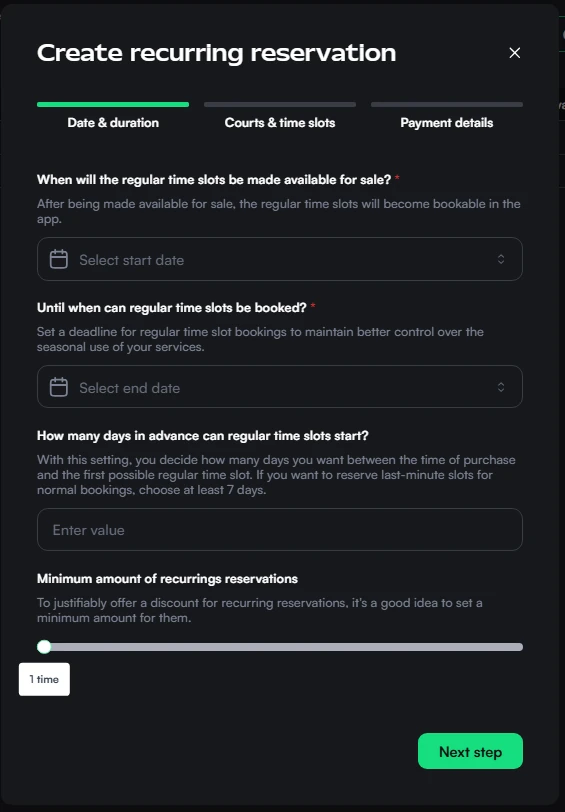
Step 2: Resources & time slots
- Resources: Select the resources where the reservations take place. The sports follow from the resources you pick.
- Days of week and Time slot: For example, Monday and Wednesday, 12:00–16:00.
- Available durations: The booking lengths customers can choose (e.g., 60 min). A duration cannot be longer than the time slot.
The product sells only times that fit inside the time slot you set here.
Step 3: Payment details
-
Payment options:
- Pay per session – customer pays weekly (requires billing information)
- Pay upfront – the whole package is paid in advance
- Both – customer can choose at checkout
-
Discounts: Thril calculates the total price from normal rates. You can give overall discounts in euros, and the discount amount may vary depending on package price and length.
-
Price rules:
- You can add multiple price rules that apply discounts
- Minimum price
- Minimum number of bookings
- Discount value
-
Name: Add an administrative name (e.g., “Monday Afternoon Badminton Reservation”). Customers do not see it.
-
Visibility in shop: Visible puts the product on your venue's shop. Not for sale keeps it off the shop.
👉 Once saved, a Visible recurring reservation product appears in the shop.
✏️ Editing and Managing Existing Recurring Reservations
-
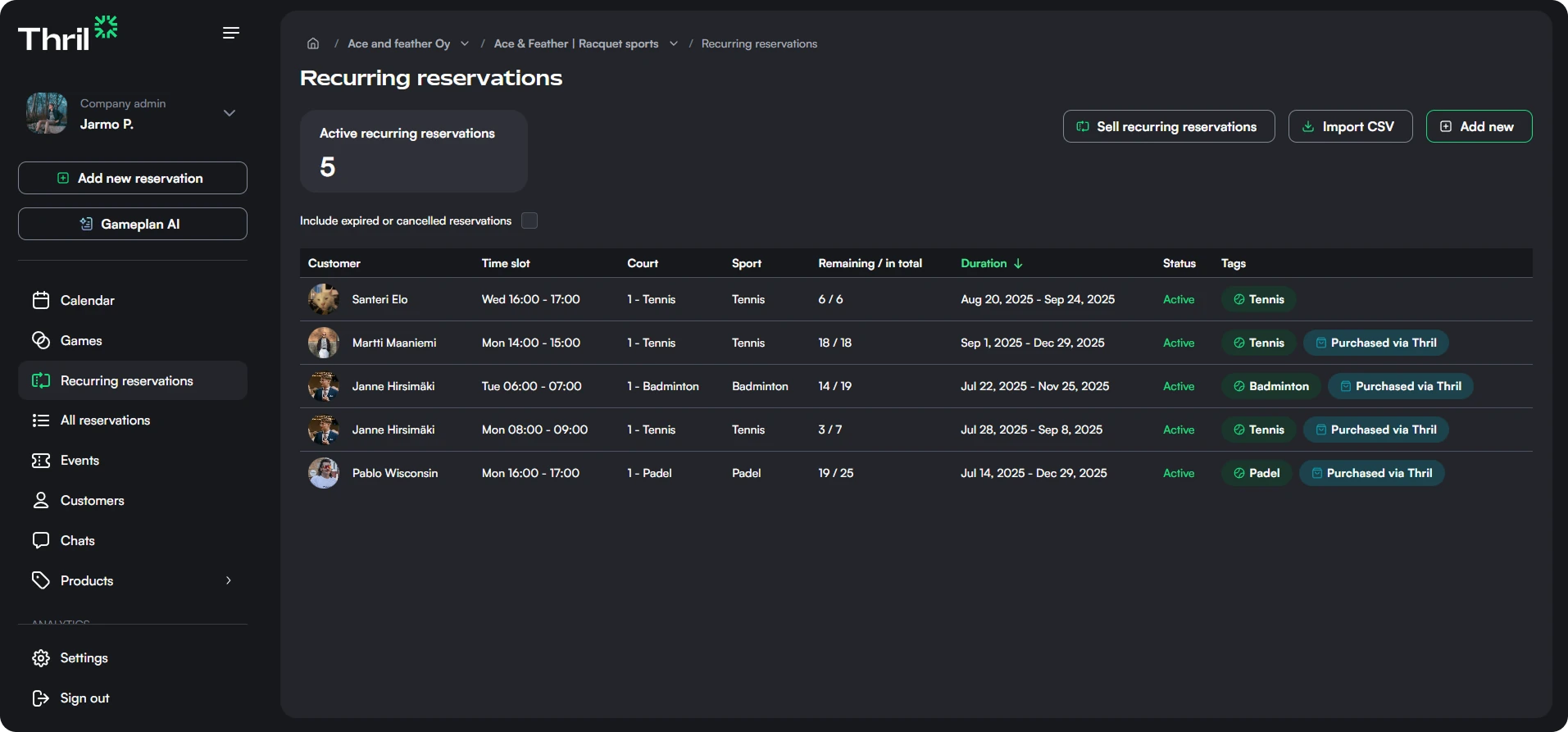
You can find recurring reservations under Products > Recurring Reservations
-
Click a row to open details:
- All settings: resources, durations, pricing, etc.
- A list of customers who have purchased the reservations, along with their times
-
Use Edit recurring reservation to update settings
-
Click Delete recurring reservation if you want to remove the product
⚠️ Note: Changes do not apply retroactively to customers who have already purchased the product.
🧾 Purchase View
From the Purchases tab of each recurring reservation, you can see:
- Customer names
- The reservations reserved for them
- Resource and sport
- How many reservations are left from the package
- A button back to "Sales view"
This makes it easy to check who has the right to which recurring reservations.
🗣️ Recurring Reservation Description
You can add text to the recurring reservation description that appears in the store. This lets you inform customers about:
- Which reservations are available
- Special instructions or announcements (e.g., “Autumn season reservations now available”)
Keep the text up to date when adding or removing reservations to avoid customer confusion.
📥 Importing Recurring Reservations from a CSV
If you are migrating from another platform, you can import recurring reservations in bulk using the Import CSV button on the Recurring Reservations page.
Steps
- Go to Products → Recurring Reservations
- Click Import CSV
- Select the import source:
- Generic — use this for exports from any platform, or when building your own import file
- Playtomic — use this for CSV exports directly from Playtomic
- Upload your CSV file
- Review the preview, resolve any warnings, and click Confirm import
Generic CSV format
Each row represents one recurring series. Required columns:
| Column | Description |
|---|---|
customer_name | Full name of the customer |
resource_name | Name of the resource as it appears in Thril |
start_date | Series start date (YYYY-MM-DD) |
end_date | Series end date (YYYY-MM-DD) |
timeslot_start | Start time of the slot (HH:MM) |
timeslot_end | End time of the slot (HH:MM) |
day_of_week | Day of week (e.g. monday) |
Optional columns: external_id, price_per_reservation, repeat_every_x_weeks, and is_fully_paid (accepted values: true/false, yes/no, or 1/0).
You can download a sample file from the Learn more link inside the import dialog.
📄 Invoicing a series
Recurring reservations in the sidebar lists every sold series. Three columns there track what the customer owes and what has been billed:
- Payment status — Unpaid, Partly paid, Paid, Partly invoiced, or Invoiced. A series that nobody has paid directly shows Partly invoiced or Invoiced once some or all of its reservations are on an invoice.
- Price — the total price of the reservations in the series that can be invoiced.
- Open — the amount the customer still owes that is not on an invoice yet. Hover the figure to see how many reservations of the series are invoiced.
Price and Open leave out cancelled reservations and reservations that are For sale. A reservation that starts without a buyer turns Canceled (not sold) and counts again, because the customer still owes it. Payment status counts the same reservations. The same figures, plus an Invoiced reservations count, are on the Details tab of the series.
To list only the series with certain payment statuses, open Filters and pick one or more under Payment status. The count and the pages of the list follow the filter.
Creating an invoice from a series
- Open the series from Recurring reservations and go to the Reservations tab.
- Select the reservations you want to invoice.
- Open the selection menu and choose Create invoice.
The new invoice opens for review. The Open amount and the payment status of the series update as soon as it is created.
Invoices tab
The Invoices tab of a series lists every invoice created for its reservations, and its label shows the invoice count. Click a row to open the invoice in Payments and invoices.
💳 Editing shared payment for a series
You can turn shared payment on or off for the upcoming reservations of a series, and change who the payers are. The series owner must be a customer with a Thril account. A series on a resource that is priced per participant has no shared payment, because every player already pays their own price. See Resources.
- Open the recurring reservation series from Recurring reservations in the sidebar.
- Open the Manage series menu and select Edit shared payment.
- Under Payment type, select Shared payment or Single payment.
- With shared payment, add the payers to the Players table. Each row is one paying spot. Use Add participant to add a spot. You can leave a spot empty, and the owner can then invite someone to it in the app.
- Click Save changes.
The change applies only to upcoming reservations that nobody has paid for. Reservations that are invoiced, or where the customer already shared the payment in the app, stay as they are. Nothing is charged or refunded, and nobody gets a notification.
When you turn shared payment off, the payers are removed with their additional services, and the owner pays the full price.
If some reservations were kept as they were, the window lists them with their dates and the reason for each one.
✅ Tips for Best Practices
- Minimum duration: Add at least 3 reservations so that customers don’t buy just one or two and still expect recurring benefits.
- Pricing: Based on the existing price lists for the sport and time reservations.
- Advance purchase delay: Use at least 7 days to keep last-minute bookings separate from recurring reservations.
- Pay upfront discounts: Encourage customers to pay the whole package in advance to ensure secure cash flow.
Promo codes
Promo codes are customizable discounts that help attract new players, reward loyalty, and run marketing campaigns directly in Thril.
Reservations and recurring reservations
Configure how and when customers can book at your venue, from enabling reservations to setting cancellation rules and per-user limits.