 Knowledge Base
Your venue page
The venue page is where customers decide to book you in the Thril app and on the web. Bios, cover and profile images with sizes and the safe zone, venue photos, busy hours, social media, keywords and tabs shape it.
Your venue page is the first thing a customer sees of you on Thril, in the app and on the web, and it is where they decide to book. Bios, images, photos and social media are under Settings → Branding. Search keywords, busy hours and tabs are under Settings → Venue details.
Bios
The Short bio shows on your venue card in search results and in Explore. In one or two sentences, say what you offer and where: "Six indoor padel courts and a café in Lauttasaari" or "Reformer pilates and yoga in central Tampere."
The Full bio opens on your venue page. It takes headings, bold text, links, images and embedded content such as a video, and customers can tap an image to see it full size. Put the things customers otherwise call about here: parking, changing rooms, rental gear, the house rules. The full bio is one text for every language. Write it in the language most of your customers use, or in two languages one after the other.
Cover image, profile image and logo
Thril has four image slots for your brand. Photos of the venue itself go in a gallery of their own.
| Image | Where customers see it | Size | Set in |
|---|---|---|---|
| Cover image | The header of your venue page, your venue card in search and Explore, and your announcements | 16:9, 2560 × 1440 px | Branding → Images |
| Profile image | Your round avatar on the venue page and on the map | Square, 512 × 512 px | Branding → Images |
| Company cover image | Your company page, when the company has more than one venue | 16:9, 2560 × 1440 px | Company details |
| Company logo | Your invoices, under the company name | Square, 512 × 512 px | Company details |
Give each image a solid background. The apps draw it on top of other content. Crop and edit images before you upload them.
The safe zone
The cover image fills a different shape on a wide screen than on a phone. Thril crops it from the edges and keeps the centre. The bottom of the image also fades into the page, with your venue name and profile image on top of it.
Keep everything that must be seen inside the middle of the image: about 18% in from the left and right edges, and 360 px, a quarter of the height, in from the top and bottom.
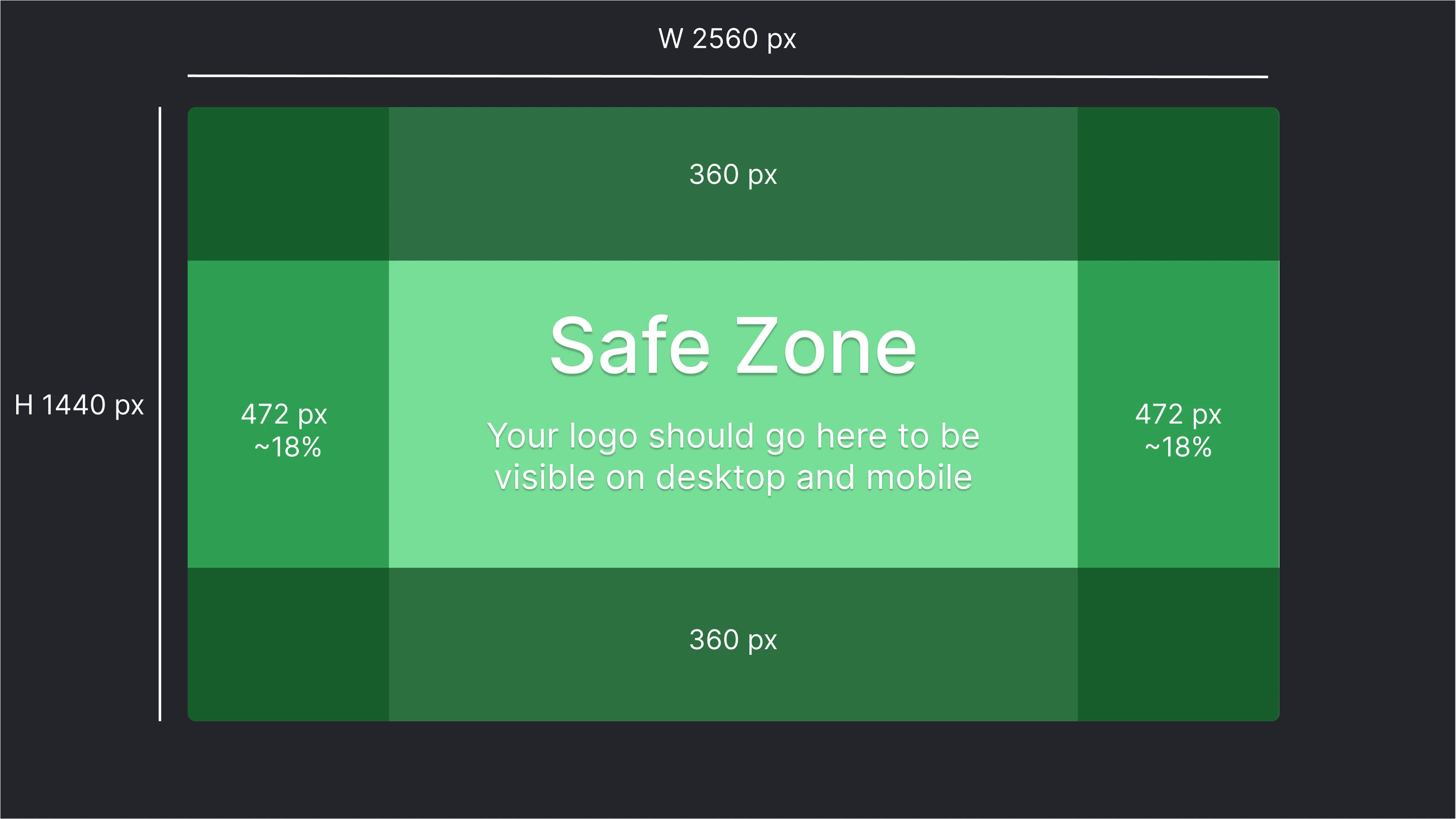
A logo on a plain or softly graded background works well as a cover. Keep it small enough to sit inside the safe zone, with good contrast against the background:

For the profile image, use your logo or a clean, centred photo. It shows as a circle. Keep the corners free of anything important.
Venue photos
Photos under Branding → Images holds up to 12 photos of your venue: the courts, the studio, the simulator bays, the lounge, the changing rooms. They show on your venue page after the cover image, in the order you drag them into. Landscape photos of at least 1600 × 900 px work best.
Busy hours
Show how busy the venue is under Venue details shows customers your quiet and busy hours on the venue page, estimated from your bookings, classes and events. Customers who prefer a quiet gym floor or an empty court come in your off-peak hours.
Social media links on your page
Under Branding → Social media, add your Facebook, Instagram and TikTok usernames. Each one shows as a link on your venue page.
Finding you in search
Keywords are extra words customers find you with in search, such as a neighbourhood, a nearby landmark or a former name. Your venue name and sports are searchable already.
Sport order decides which sports show first on your venue card.
Tabs on the venue page
Your venue page has a tab for each thing customers can do there, such as reservations, classes or the shop. A tab appears once you have something in it.
- Default tab on venue page is the tab customers land on. Automatic opens reservations, classes or events, depending on what you have. Pick a tab yourself when most customers come for something else, such as courses or the shop.
- Venue page tab order sets the order of the tabs, on the web and in the app.
- Name for your staff names the tab that lists your staff's public profiles, such as Coaches or Instructors. The tab appears once an employee at the venue has a public profile.
Public week calendar adds a read-only week view of your events and booked times as a tab, and gives you code to embed it on your own website. Customer names stay hidden unless you show them. Read more in Your own website.
Company and venue details
Company settings hold your legal details for receipts and invoices. Each venue has its own status, type, sports and staff notifications, and the company sets the dashboard sidebar.
Staff accounts and roles
Everyone on your team gets a staff account with a role, from company admin to venue clerk and coach, that decides what they see in the Thril dashboard.