 Knowledge Base
Shop appearance
You choose which product categories your shop shows and in what order, give each category a picture, name your shop products, and pick images that fit every screen.
Settings → Shop sets your shop's categories, their pictures and the name of your shop products. Each venue of your company sets its own. Each product's images are set on the product, and your venue page's bios, cover image and logo on the venue page.
Categories and their order
The shop has six categories: memberships, shop products, credit top-ups, gift cards, session cards and recurring reservations. Under Categories, drag them into order and clear Visible on the ones to hide. The order applies in the app and on the web, to the filter chips at the top of the shop and the sections below them.
Put what you sell most first. A gym leads with Memberships, and a padel club that sells weekly slots leads with Recurring reservations. A category with nothing for sale stays out of the shop on its own.
Hiding a category stops online sales of everything in it, also through product links. Staff still sell its products at the POS, extras are still offered with bookings, and customers keep what they own.
Showing or hiding one product
Every membership, session card, credit top-up, gift card product, shop product and recurring reservation product has a Visibility in shop.
| If you want… | Choose | What customers see |
|---|---|---|
| The product listed in the shop | Visible | The product in its category |
| To sell only to people you send the link to | Hidden | Nothing in the shop. The product's link still sells it |
| To stop selling online, such as an old offer | Not for sale | Nothing, also through the product's link |
Staff can add or sell a product at the POS whatever its visibility, and customers keep what they already bought.
Category pictures
Under Images, give each category its own square picture, at least 600 × 600 px. Your own photos make the shop look like your venue.
Shop products or Pro Shop
Under Terminology, you can call your shop products Shop products or Pro Shop, to match what your venue and customers call them. The name shows on the shop tab and the category.
Product images
| Product | Images |
|---|---|
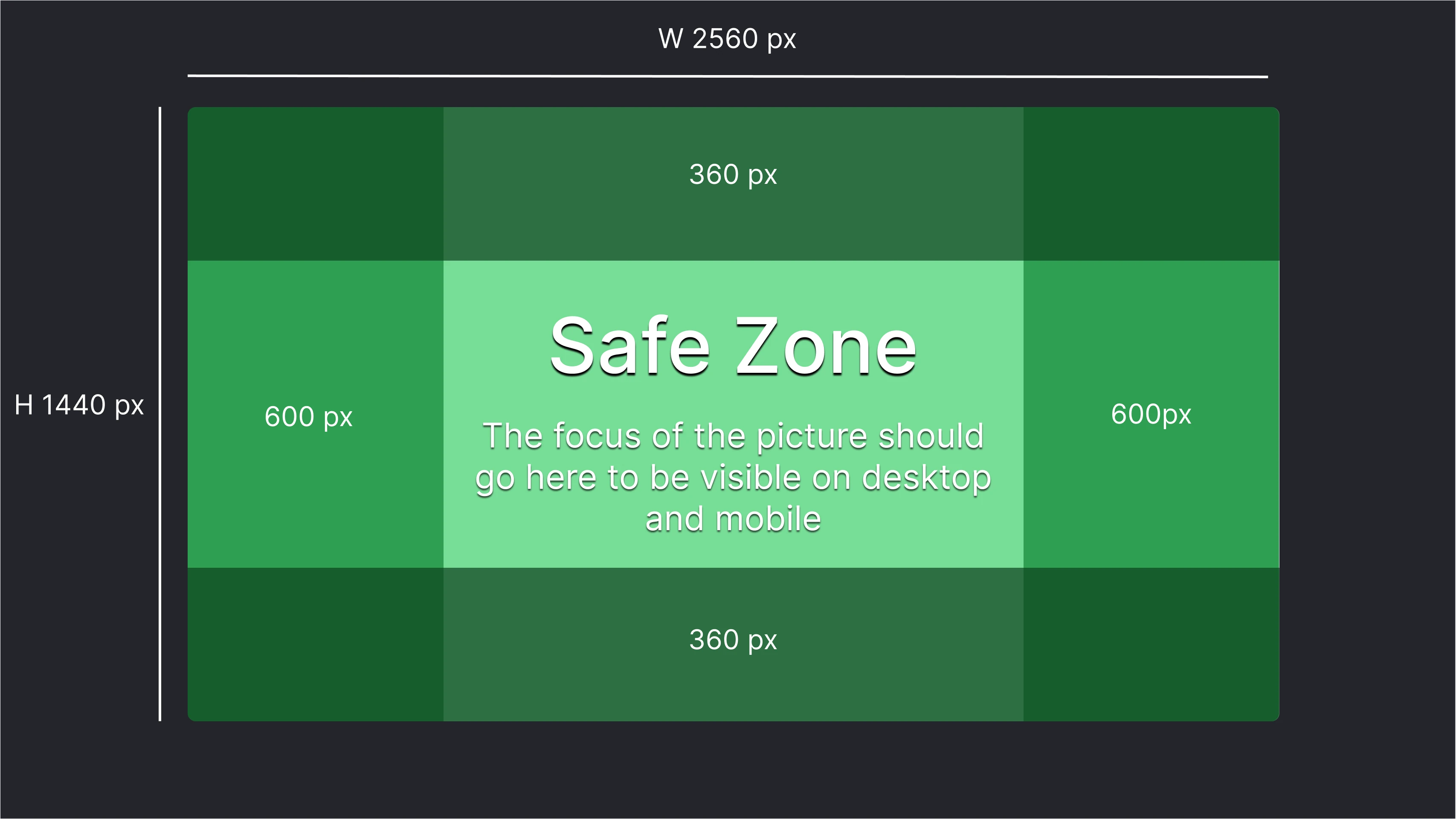
| Memberships, session cards and credit top-ups | A Square image, shown on phones, 1:1 and at least 600 × 600 px. A Cover image, shown on wide screens, 16:9 and at least 2560 × 1440 px |
| Shop products and gift card products | A gallery of photos, at least 1200 × 1200 px, any shape. Customers see the first photo first |
A gift card product's first photo is printed on the gift card PDF. Pick one that works as the face of a card.
Each screen crops a cover image a little differently. Keep the logo, the product name and the main visual in the centre, and leave the edges for background. One clear subject works better than a collage or small text.
Sale limit, sale window and regular price
A membership, session card, top-up or gift card product can sell to a limited number of customers, during a set time, with the regular price shown next to the offer.
POS
Thril POS sells products, memberships, session cards, credits, gift cards and unpaid bookings on site in one till, paid by card, cash, invoice or your own payment methods, with split bills and refunds.